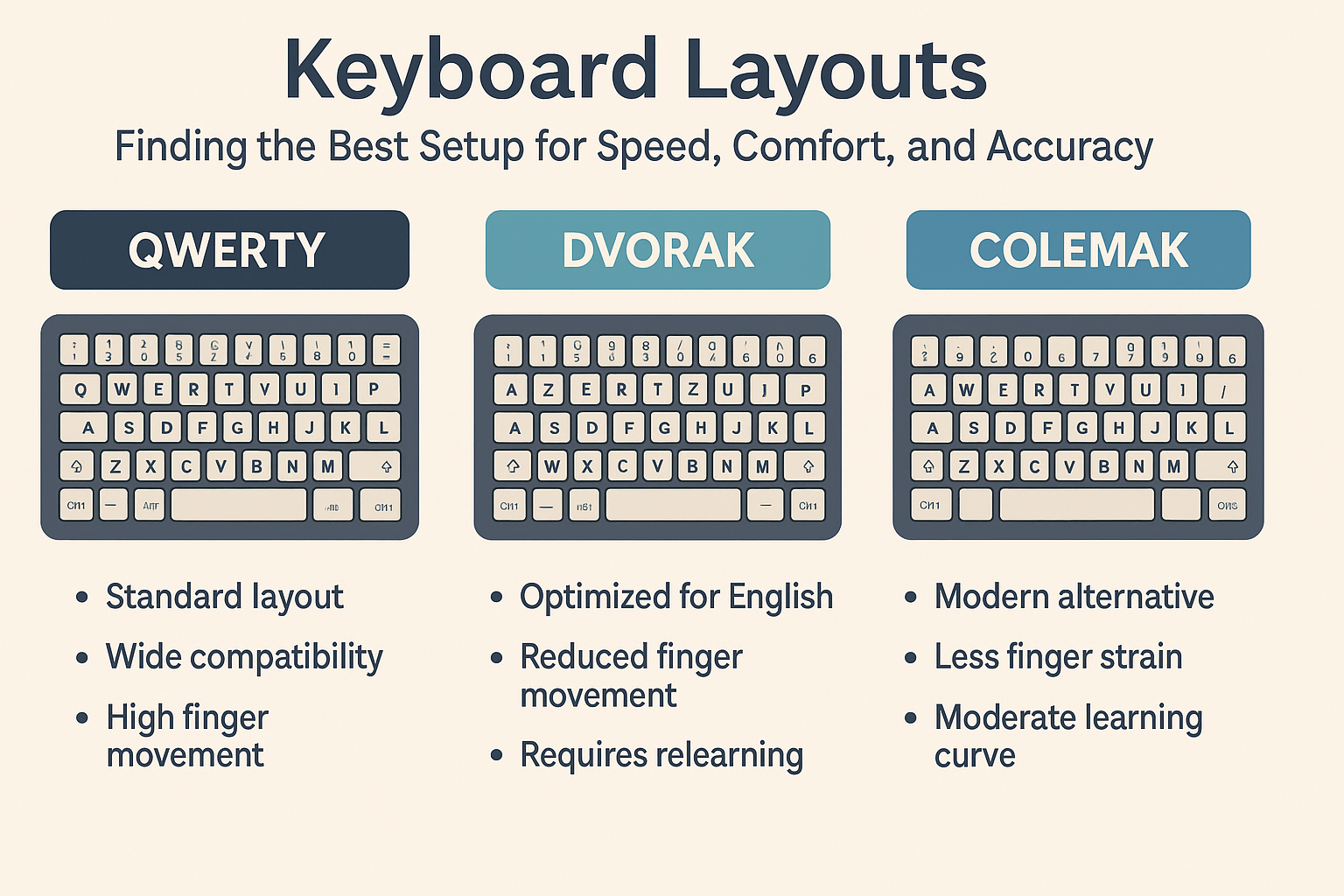
Keyboard Layouts: Finding the Best Setup for Speed, Comfort, and Accuracy
Keyboard Layouts shape how efficiently and comfortably you type. While QWERTY remains the global standard, alternative layouts like Dvorak and Colemak are designed to improve ergonomics and reduce finger movement. Understanding the differences helps you choose the right layout for your typing goals — whether speed, comfort, or long-term hand health.
What Is a Keyboard Layout?
A keyboard layout determines the physical arrangement of letters, symbols, and function keys. Each layout aims to balance speed, comfort, and accessibility. For instance, QWERTY was developed for mechanical typewriters, while modern alternatives like Dvorak and Colemak optimize for digital efficiency.
The Most Common Keyboard Layouts
1. QWERTY Layout (Standard)
QWERTY is the most widely used layout, named after its top row of letters. It was designed in the 1870s for typewriters to prevent jamming by spacing out frequently used keys.
- Pros: Universally supported, easy to find keyboards and tutorials, works on all devices.
- Cons: Requires more finger travel, less ergonomic, can cause fatigue in long sessions.
- Best for: General users, students, and professionals used to the standard layout.
2. Dvorak Simplified Layout
The Dvorak layout was introduced in 1936 by Dr. August Dvorak to increase efficiency and comfort. It places the most common letters under the strongest fingers and minimizes hand movement.
- Pros: Reduces finger travel, increases speed and accuracy for trained users.
- Cons: Steeper learning curve, limited default support in some systems, retraining required.
- Best for: Experienced typists seeking long-term ergonomic benefits or speed boosts.
3. Colemak Layout
Colemak is a modern alternative created in 2006. It keeps many familiar QWERTY positions but repositions high-frequency keys for efficiency and comfort. This makes it easier to learn than Dvorak.
- Pros: Easy transition from QWERTY, reduced hand movement, great for coding and writing.
- Cons: Less common on public devices, requires configuration.
- Best for: People who want an efficient layout without completely abandoning QWERTY.
4. Workman Layout
The Workman layout is optimized for natural finger motion and hand ergonomics rather than raw speed. It reduces lateral finger movement and is popular among programmers and long-form typists.
- Pros: Very ergonomic, efficient balance between comfort and speed.
- Cons: Limited support, not widely adopted.
- Best for: Users prone to wrist fatigue or typing-related discomfort.
How Layout Affects Typing Speed & Accuracy
- Finger travel distance: Shorter travel means faster, smoother typing.
- Hand alternation: Balanced layouts alternate hands more often, improving rhythm.
- Muscle memory: Changing layouts resets habits, but once mastered, can reduce strain.
- Error rate: Ergonomic layouts tend to lower error rates once you’re comfortable.
Should You Switch Keyboard Layouts?
Switching layouts isn’t necessary for everyone. If you type comfortably on QWERTY, there’s no strong reason to change. However, if you experience fatigue, wrist pain, or plateau in speed, trying a new layout may help.
Here’s a good rule of thumb:
- Stay with QWERTY if you’re typing comfortably and productively.
- Try Colemak if you want smoother flow and easier transition.
- Consider Dvorak if you want to retrain for ultimate efficiency and comfort.
How to Try a New Keyboard Layout
- Enable the layout: In Windows, macOS, or Linux settings, add a new keyboard layout (Dvorak or Colemak).
- Use online trainers: Practice with sites like keybr.com or typing.com using your chosen layout.
- Start slow: Dedicate 10–15 minutes a day for 2–3 weeks. Accuracy first, speed later.
- Label keys or use overlays: Helps during transition while memorizing new positions.
Ergonomics Meets Layout
Your layout choice should work with your ergonomic setup. The most efficient layout won’t help if your posture or wrist position is poor. Pair your layout with a neutral wrist angle, comfortable chair height, and a well-placed monitor for best results.
Fun Fact: Regional Layouts
- AZERTY — Used in France and Belgium.
- QWERTZ — Common in Germany and Central Europe.
- JCUKEN — Cyrillic layout used in Russia.
- Hindi/InScript — Standard for typing Indian languages.
Conclusion
Choosing the right keyboard layout depends on your goals — whether it’s maximizing speed, comfort, or reducing fatigue. Experiment with different layouts and give yourself time to adapt. There’s no “one-size-fits-all,” but understanding how each layout works empowers you to type smarter, not harder.
Try this: Enable the Colemak layout for one week and track your accuracy and comfort — you might be surprised by how much smoother typing feels.
#keyboard layouts
#qwerty
#dvorak
#colemak
#typing speed
#comfort
#ergonomics